
How to Create a Favicon from Any Image
Turn any image into a properly sized favicon for your website. Covers ICO, PNG, and SVG favicon formats with step-by-step instructions.
Turn any image into a properly sized favicon for your website. Covers ICO, PNG, and SVG favicon formats with step-by-step instructions.
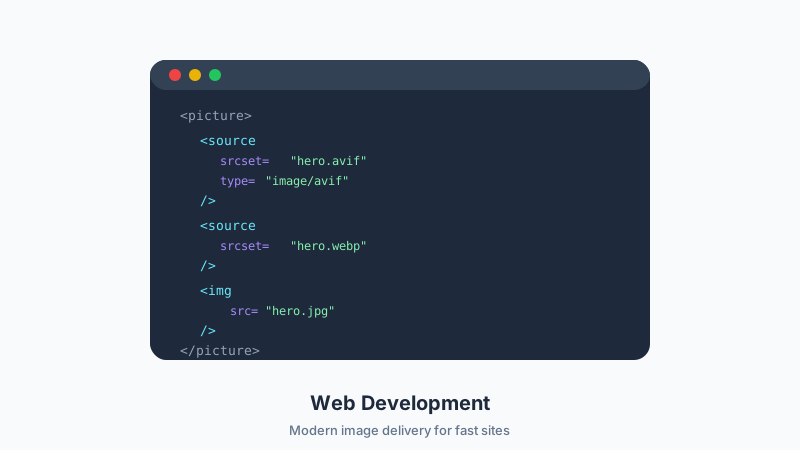
A favicon is the small icon that appears in browser tabs, bookmarks, and search results next to your site name. It is a tiny detail that makes a big difference in how professional your site looks. Here is how to create one from any image you have.
Favicon Sizes You Need
Modern browsers and devices expect favicons in several sizes. At minimum, you should provide:
- 16 × 16 px: Browser tab icon (classic favicon)
- 32 × 32 px: Browser tab icon on higher-DPI screens
- 180 × 180 px: Apple Touch Icon for iOS home screens
- 192 × 192 px: Android Chrome home screen icon
- 512 × 512 px: Progressive Web App splash screen
The most common approach is to create a single high-resolution source image and resize it to each required dimension.
Choosing the Right Source Image
Not every image works well as a favicon. At 16 × 16 pixels, fine details disappear entirely. Follow these guidelines:
- Use a simple, bold design. A single letter, a geometric shape, or a simplified version of your logo works best.
- Avoid photographs. Photos become unrecognizable blobs at favicon sizes.
- Use high contrast. The icon needs to be legible against both light and dark browser themes.
- Start with a square image. Favicons are always square. If your logo is horizontal, extract the icon portion or use an initial.
- Use a transparent background if possible. This looks cleaner in browser tabs, especially in dark mode.
Step-by-Step: Image to Favicon
Step 1: Prepare Your Source Image
Start with the largest, cleanest version of your icon. Ideally, this is a vector file (SVG) or a high-resolution PNG at least 512 × 512 px.
If you only have a larger image with extra space around the icon, use the Browser Image Converter Image Cropper to trim it to a tight square around the design.
Step 2: Resize to Favicon Dimensions
Open the Image Resizer on Browser Image Converter and create each size you need:
- Upload your square source image.
- Set dimensions to 512 × 512 px and download. This is your PWA icon.
- Resize to 192 × 192 px and download. This is your Android icon.
- Resize to 180 × 180 px and download. This is your Apple Touch Icon.
- Resize to 32 × 32 px and download.
- Resize to 16 × 16 px and download.
Step 3: Convert to the Right Formats
- PNG is the modern standard for favicons. All current browsers support PNG favicons.
- ICO is the legacy format. It can contain multiple sizes in a single file. Some older tools and browsers still expect it.
- SVG favicons are supported in modern browsers and scale perfectly to any size. If your source is already SVG, you can use it directly.
Use the Format Converter to switch between formats as needed.
Step 4: Add to Your Website
Place the favicon files in your site's root directory and add the following to your HTML <head>:
<link rel="icon" type="image/png" sizes="32x32" href="/favicon-32x32.png">
<link rel="icon" type="image/png" sizes="16x16" href="/favicon-16x16.png">
<link rel="apple-touch-icon" sizes="180x180" href="/apple-touch-icon.png">
<link rel="manifest" href="/site.webmanifest">
Your site.webmanifest file should reference the larger icons:
{
  "icons": [
    { "src": "/icon-192.png", "sizes": "192x192", "type": "image/png" },
    { "src": "/icon-512.png", "sizes": "512x512", "type": "image/png" }
  ]
}
Testing Your Favicon
After deploying, verify your favicon appears correctly:
- Desktop browsers: Check the tab icon in Chrome, Firefox, Safari, and Edge.
- Mobile: Add your site to the home screen on iOS and Android to test touch icons.
- Bookmarks: Bookmark the page and confirm the icon shows up.
- Google Search: Search for your site and check if the favicon appears in results (this may take time for Google to index).
Clear your browser cache if you do not see the updated icon immediately. Favicons are aggressively cached.
Common Favicon Mistakes
- Using a full logo with text: Text is unreadable at 16 px. Use just the icon mark.
- Forgetting the Apple Touch Icon: iOS will generate an ugly screenshot thumbnail if you do not provide one.
- Not testing on dark backgrounds: Many browsers now have dark themes. Make sure your icon is visible on both light and dark tab bars.
- Skipping the manifest file: Without it, Android devices will not display your icon correctly on the home screen.
Conclusion
Creating a favicon from any image takes just a few minutes with the right tools. Use Browser Image Converter's Image Cropper to isolate your icon, the Image Resizer to generate every size you need, and the Format Converter to produce the right file types. A polished favicon is a small touch that signals professionalism to every visitor.
Related Articles
Try the Tool
Need this workflow right now? Open our free in-browser image tools and process files locally.
Open BrowserIMG Tools