
How to Convert RAW Photos for Web Use
Learn the complete workflow for converting RAW camera files to web-ready formats. From RAW to JPEG, WebP, or AVIF with optimal quality settings.
Learn the complete workflow for converting RAW camera files to web-ready formats. From RAW to JPEG, WebP, or AVIF with optimal quality settings.
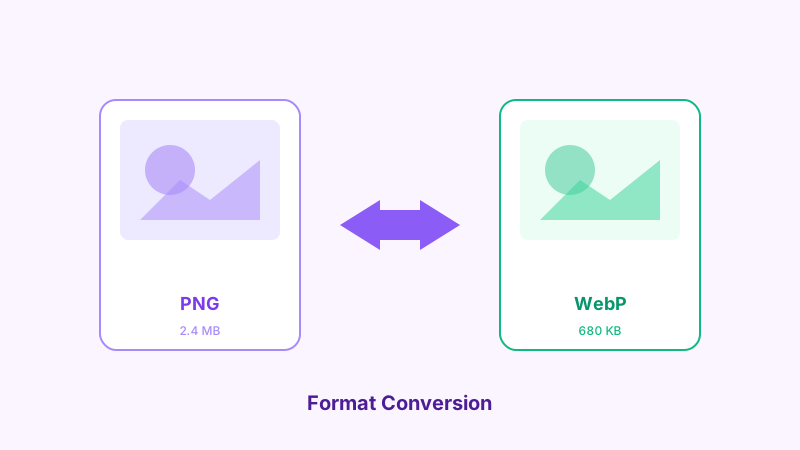
RAW files are the gold standard for photography. They capture the full data from your camera's sensor, giving you maximum flexibility in post-processing. But RAW files are not web-friendly. They are huge, unsupported by browsers, and require conversion before you can use them online. Here is the complete workflow from RAW to web-ready.
Why RAW Files Cannot Go Directly to the Web
RAW files are not images in the traditional sense. They are unprocessed sensor data that needs to be interpreted (demosaiced) before it becomes a viewable photo. Key issues:
- File size: A single RAW file from a modern camera is 25–60 MB. That is 50–100 times larger than a web-optimized JPEG.
- No browser support: No web browser can display .CR3, .NEF, .ARW, or other RAW formats natively.
- No standard format: Every camera manufacturer uses a different RAW format. Canon uses CR3, Nikon uses NEF, Sony uses ARW, and so on.
- Unfinished look: RAW files look flat and desaturated by default. They need processing to look their best.
The RAW to Web Workflow
Step 1: Edit in Your RAW Processor
Open your RAW files in Lightroom, Capture One, darktable, or RawTherapee. Make your adjustments:
- White balance correction
- Exposure and contrast
- Color grading and saturation
- Sharpening and noise reduction
- Lens corrections
- Cropping and straightening
This is where RAW's flexibility pays off. You can recover highlights and shadows that would be lost in a JPEG.
Step 2: Export as High-Quality JPEG or TIFF
Export from your RAW processor at the highest quality you will need:
- JPEG at quality 95–100: Good for most workflows. The quality loss at this level is imperceptible.
- TIFF (16-bit): If you plan to do additional editing before web conversion. TIFF preserves more data but produces very large files.
- PNG: If you need transparency (rare for photographs).
Set the export dimensions to the largest size you will use. For web, 3000–4000 px on the longest side is more than enough.
Step 3: Resize for Web Dimensions
Your exported file is still larger than what the web needs. Use the Browser Image Converter Image Resizer to scale down:
- Hero images and full-width banners: 1920 px wide
- Blog post images: 1200 px wide
- Thumbnails and cards: 600 px wide
- Social media: Platform-specific dimensions (see our social media sizing guide)
Step 4: Convert to a Web Format
Choose the right output format:
- JPEG: Universal compatibility. Quality 80–85 is the sweet spot for photographs.
- WebP: 25–35 percent smaller than JPEG at equivalent quality. Supported by all modern browsers. This is the best default for web use in 2026.
- AVIF: Even smaller than WebP, but slower to encode. Great for high-traffic sites where every kilobyte matters.
Use the Format Converter to switch between formats. For maximum reach, create both a WebP version (primary) and a JPEG version (fallback).
Step 5: Compress for Fast Loading
Run the final image through the Image Compressor:
- Set quality to 80 for general web use.
- Set quality to 85–90 for portfolio and photography sites where visual quality is paramount.
- Check the preview to ensure no visible artifacts appear.
Batch Processing RAW Exports
If you are processing an entire shoot, efficiency matters:
- Edit and export all RAW files from your processor in one batch.
- Load the exported files into Browser Image Converter's Bulk Processor.
- Set target dimensions and compression quality.
- Process the entire batch at once.
- Download the web-ready files.
This workflow handles a hundred images in minutes rather than hours.
Color Management Considerations
RAW files often use wide color gamuts (Adobe RGB or ProPhoto RGB). The web uses sRGB. If you do not convert the color space during export, colors may look different in browsers.
- Export in sRGB from your RAW processor. This is usually the default for web-targeted exports.
- Embed the ICC profile if your RAW processor offers the option. This helps color-managed browsers display accurate colors.
- Check on multiple devices. Colors can shift between monitors, phones, and tablets regardless of color management.
Metadata and Privacy
RAW files and their JPEG exports contain EXIF metadata including camera model, lens, settings, GPS coordinates, and sometimes your name. Before publishing online:
- Strip GPS data if you do not want to reveal shooting locations.
- Keep camera settings if you want other photographers to learn from your work.
- Use the Browser Image Converter EXIF Remover to selectively strip metadata.
Recommended Export Settings Summary
| Use Case | Format | Width | Quality | Expected Size |
|---|---|---|---|---|
| Portfolio hero | WebP | 1920 px | 85 | 150–300 KB |
| Blog post image | WebP | 1200 px | 80 | 80–150 KB |
| Social media | JPEG | Platform-specific | 80 | 100–200 KB |
| Thumbnail | WebP | 600 px | 75 | 30–60 KB |
| Print-ready | JPEG | 4000 px | 95 | 2–5 MB |
Conclusion
Converting RAW photos for the web is a multi-step process, but each step is straightforward. Edit in your RAW processor, export at high quality, then use Browser Image Converter to resize, convert, and compress for the web. The result is images that load fast, look sharp, and do justice to the work you put into capturing them.
Related Articles
Try the Tool
Need this workflow right now? Open our free in-browser image tools and process files locally.
Open BrowserIMG Tools