
Image Optimization Checklist for Web Developers
A comprehensive checklist for optimizing images in web projects. Covers formats, compression, responsive images, lazy loading, and performance testing.
A comprehensive checklist for optimizing images in web projects. Covers formats, compression, responsive images, lazy loading, and performance testing.
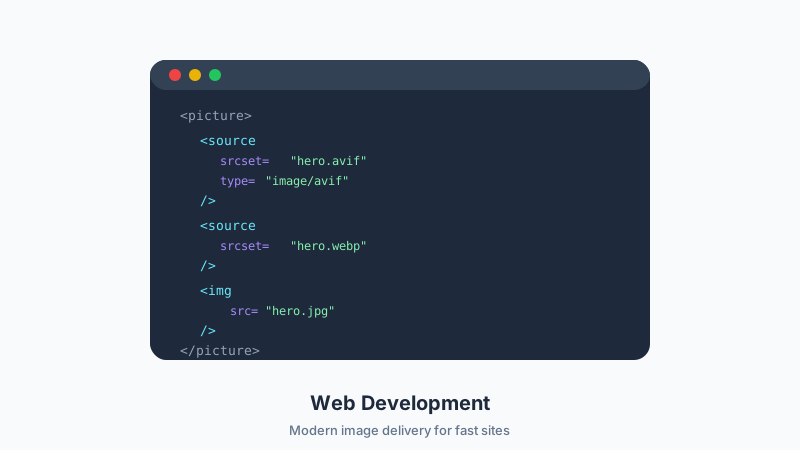
Image optimization is not a single task — it is a series of decisions that compound into significant performance gains. This checklist covers everything a web developer should consider when handling images in a project. Bookmark it and run through it before every deployment.
Format Selection
- Use WebP as the default format for photographic images. It delivers 25–35 percent smaller files than JPEG at equivalent quality.
- Use AVIF where supported for even greater savings (up to 50 percent smaller than JPEG). Provide WebP or JPEG fallbacks.
- Use SVG for icons, logos, and illustrations. Vector graphics scale perfectly and are typically smaller than raster equivalents.
- Use PNG only when transparency is required and WebP is not an option. PNG photographs are 5–10x larger than JPEG.
- Avoid GIF for animations. Use MP4 or WebM video instead. A 5-second GIF can be 10 MB; the same clip as MP4 is often under 500 KB.
-
Implement format fallbacks using the
<picture>element:
<picture>
  <source srcset="image.avif" type="image/avif">
  <source srcset="image.webp" type="image/webp">
  <img src="image.jpg" alt="Description">
</picture>
Sizing and Dimensions
- Never serve images larger than their display size. A 4000 px image displayed at 800 px wastes bandwidth.
- Generate multiple sizes for responsive delivery. Common breakpoints: 400, 800, 1200, and 1600 px wide.
- Use the srcset attribute to let the browser choose the right size:
<img src="photo-800.webp"
     srcset="photo-400.webp 400w, photo-800.webp 800w, photo-1200.webp 1200w, photo-1600.webp 1600w"
     sizes="(max-width: 600px) 100vw, (max-width: 1200px) 50vw, 800px"
alt="Description">- Account for device pixel ratio. Retina displays need 2x images. A 400 px display slot needs an 800 px image for sharp rendering.
-
Set explicit width and height on all
<img>tags to prevent Cumulative Layout Shift (CLS).
Compression
- Compress all images before deployment. Use the Browser Image Converter Image Compressor for quick, browser-based compression.
- Target quality 75–85 for photographs. This range is visually lossless for most content.
- Target quality 85–95 for images with text (screenshots, infographics). Text is more sensitive to compression artifacts.
- Use lossless compression for PNG when pixel accuracy matters (technical diagrams, screenshots for documentation).
- Strip unnecessary metadata. EXIF data adds 10–50 KB per image. Use the EXIF Remover to clean files before deployment.
- Audit total image weight per page. Aim for under 500 KB of images on content pages and under 1.5 MB on image-heavy pages.
Loading Strategy
-
Lazy load below-the-fold images using the native
loading="lazy"attribute. - Do not lazy load the LCP image. The Largest Contentful Paint element should load immediately.
- Preload critical images that appear above the fold:
<link rel="preload" as="image" href="hero.webp" type="image/webp">-
Use
fetchpriority="high"on the LCP image to signal its importance to the browser:
<img src="hero.webp" fetchpriority="high" alt="Hero image">- Implement blur-up or LQIP placeholders for images that load below the fold. A tiny, blurred placeholder prevents layout shift and gives users a preview.
-
Decode images off the main thread using
decoding="async"on non-critical images.
Accessibility
- Write descriptive alt text for every informational image. Be specific: "Red leather wallet on white background" not "product image."
-
Use empty alt attributes (
alt="") for purely decorative images so screen readers skip them. - Ensure sufficient contrast between text overlaid on images and the image background.
- Do not rely on images alone to convey critical information. Provide text alternatives.
Infrastructure
- Serve images from a CDN. Geographic proximity reduces latency.
- Enable HTTP/2 or HTTP/3 on your server. Multiplexed connections load multiple images faster.
-
Set long cache headers for images (e.g.,
Cache-Control: public, max-age=31536000, immutable). Use content hashes in filenames for cache busting. - Enable Brotli or gzip compression on your server for SVG files (they are text-based and compress well).
- Consider an image CDN (Cloudinary, imgix, Cloudflare Images) for automatic format conversion, resizing, and optimization on the fly.
Testing and Monitoring
- Run Lighthouse and check the image-related audits: "Properly size images," "Serve images in next-gen formats," "Efficiently encode images."
- Check Core Web Vitals in Google Search Console. Monitor LCP and CLS scores.
- Test on real devices and slow connections. Use Chrome DevTools network throttling to simulate 3G.
- Monitor total page weight over time. Image bloat tends to creep in as content is added.
- Automate image optimization in your build pipeline. Tools like sharp (Node.js), Squoosh CLI, or imagemin can process images during CI/CD.
Quick Reference: Recommended Settings
| Image Type | Format | Quality | Max Width |
|---|---|---|---|
| Hero/banner | WebP | 80 | 1920 px |
| Content image | WebP | 80 | 1200 px |
| Thumbnail | WebP | 75 | 400 px |
| Icon | SVG | N/A | N/A |
| Screenshot | PNG | Lossless | 1440 px |
| Product photo | WebP | 85 | 2000 px |
Conclusion
Image optimization is a discipline, not a one-time task. Run through this checklist at the start of every project and revisit it as content grows. Use Browser Image Converter's tools — Image Compressor, Image Resizer, Format Converter, and EXIF Remover — to handle the manual steps quickly and privately in your browser. Your users, your search rankings, and your hosting bill will all benefit.
Related Articles
Try the Tool
Need this workflow right now? Open our free in-browser image tools and process files locally.
Open BrowserIMG Tools