
How to Reduce Image File Size for Email Attachments
Learn practical techniques to compress and resize images for email attachments without losing quality. Stay under file size limits every time.
Learn practical techniques to compress and resize images for email attachments without losing quality. Stay under file size limits every time.
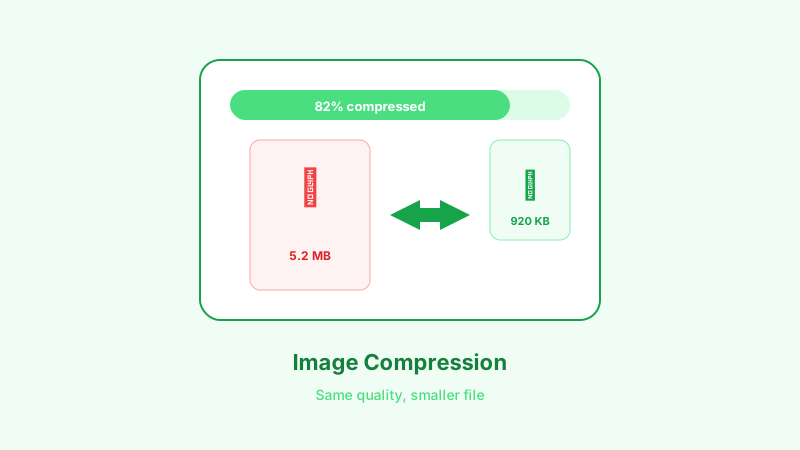
Most email providers cap attachment sizes between 10 MB and 25 MB. If you regularly send photos or graphics by email, you have almost certainly hit that wall. Here is how to shrink your images so they arrive without a bounce-back.
Why Email Providers Limit Attachment Size
Email was designed for text. Large binary attachments strain mail servers, slow delivery, and eat into recipients' storage quotas. Gmail allows 25 MB per message, Outlook caps at 20 MB, and many corporate servers set the bar even lower at 10 MB. A single uncompressed photo from a modern smartphone can easily exceed 8 MB, so sending two or three originals is often enough to trigger a rejection.
Quick Wins: Resize Before You Compress
Compression alone is not always enough. If you shot a photo at 4000 × 3000 pixels but the recipient only needs to view it on screen, resizing to 1920 × 1440 can cut the file size by more than half before any compression is applied.
- For general viewing: 1920 px on the longest side is plenty for any screen.
- For document inserts: 1200 px wide works well inside Word or Google Docs.
- For thumbnails or previews: 800 px wide keeps things lightweight.
Use the Browser Image Converter Image Resizer to set exact pixel dimensions in seconds.
Choose the Right Format
Format choice has a huge impact on file size:
- JPEG is the go-to for photographs. At quality 80, most images look indistinguishable from the original while being a fraction of the size.
- PNG preserves transparency but produces larger files. Only use it when you need a transparent background.
- WebP offers better compression than JPEG at the same quality, but not every email client renders it inline. Convert to JPEG if compatibility matters.
Step-by-Step: Compress an Image for Email
- Open the Image Compressor on Browser Image Converter.
- Drop your image onto the upload area.
- Set the quality slider to around 75–80 percent. The preview will show you exactly what the output looks like.
- Check the estimated file size. For email, aim for under 1 MB per image.
- Download the compressed file and attach it to your message.
All processing happens locally in your browser, so your photos are never uploaded to a remote server.
Handling Multiple Attachments
When you need to send several images in one email:
- Compress each image individually to stay under the per-message limit.
- Use the Bulk Processor to compress a batch in one go. Set a target quality and let the tool handle every file.
- Consider a ZIP archive. Grouping compressed images into a ZIP does not reduce size much further, but it keeps the email tidy and makes downloading easier for the recipient.
What About Cloud Links Instead?
If your images are still too large after compression, most email clients let you insert a Google Drive, OneDrive, or Dropbox link. This sidesteps the attachment limit entirely. Compress the images first anyway so the recipient gets a faster download.
Tips for Specific Scenarios
- Sending photos from your phone: Transfer to your computer first, or use Browser Image Converter on your phone's browser. Resize to 1920 px and compress to quality 75.
- Attaching screenshots: Screenshots are often PNG. Convert to JPEG with the Format Converter to drop the size dramatically.
- Emailing scanned documents: Scans at 300 DPI are great for printing but overkill for on-screen reading. Resize to 150 DPI equivalent dimensions and compress.
Recommended Target Sizes
| Use Case | Target Size | Quality Setting |
|---|---|---|
| Single photo attachment | Under 1 MB | 75–80% |
| Multiple photos (5+) | Under 500 KB each | 70–75% |
| Document insert | Under 300 KB | 70% |
| Quick preview | Under 100 KB | 60–65% |
Conclusion
Reducing image size for email comes down to three steps: resize to reasonable dimensions, pick the right format, and compress with a sensible quality setting. Browser Image Converter handles all three in your browser with zero sign-ups and zero uploads. Next time an email bounces back, you will know exactly what to do.
Related Articles
Try the Tool
Need this workflow right now? Open our free in-browser image tools and process files locally.
Open BrowserIMG Tools