
How to Fix Blurry Images with AI Upscaling
Rescue low-resolution and blurry photos using AI-powered upscaling. Learn when upscaling works, its limitations, and how to get the best results.
Rescue low-resolution and blurry photos using AI-powered upscaling. Learn when upscaling works, its limitations, and how to get the best results.
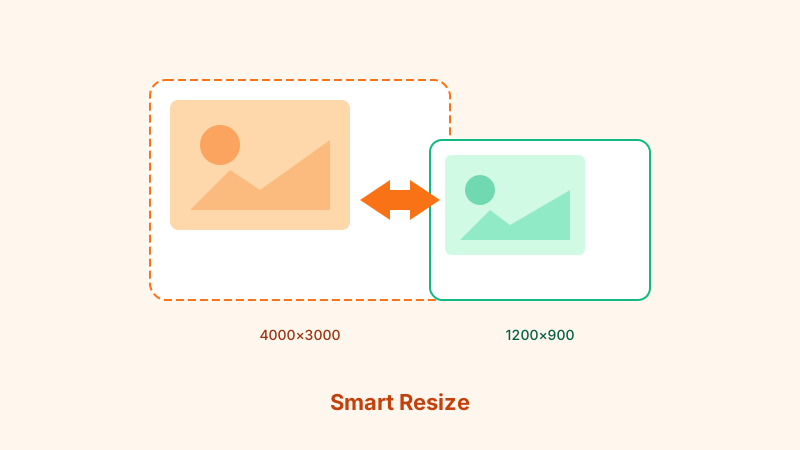
We have all been there. You find the perfect photo, but it is too small or too blurry to use. Maybe it is an old family photo scanned at low resolution, a tiny thumbnail pulled from a website, or a screenshot that looked fine on screen but falls apart when printed. AI upscaling can help — but it is not magic. Here is what it can do, what it cannot, and how to get the best results.
How AI Upscaling Works
Traditional upscaling simply adds pixels by interpolating between existing ones. The result is a larger image that looks soft and blurry. AI upscaling is fundamentally different. It uses neural networks trained on millions of image pairs (low-resolution and high-resolution versions of the same photo) to predict what the missing detail should look like.
The AI does not recover original detail — that information is gone. Instead, it generates plausible detail based on patterns it learned during training. This is why upscaled images can look impressively sharp even though the added detail is technically synthetic.
When Upscaling Works Well
AI upscaling produces the best results in these scenarios:
- Faces: Modern upscaling models are particularly good at enhancing facial features, making them clearer and more defined.
- Text in images: AI can often reconstruct partially legible text into readable characters.
- Architectural details: Straight lines, repeating patterns, and geometric shapes upscale cleanly.
- Nature scenes: Foliage, skies, and water textures benefit from AI pattern recognition.
- 2x to 4x enlargement: Doubling or quadrupling resolution is the sweet spot. Beyond 4x, results degrade noticeably.
When Upscaling Struggles
- Extremely low resolution: A 50 × 50 px image does not contain enough information for the AI to work with. There is a floor below which no algorithm can help.
- Heavy JPEG artifacts: Blocky compression artifacts get amplified by upscaling. The AI may try to sharpen the blocks rather than remove them.
- Motion blur: AI upscaling adds detail but cannot reverse the directional smearing caused by camera shake.
- Artistic or stylized images: Watercolor paintings, pixel art, and heavily filtered photos may get unwanted "realistic" detail added.
Step-by-Step: Upscale a Blurry Image
- Open the Image Upscaler on Browser Image Converter.
- Upload your low-resolution or blurry image.
- Select the upscaling factor. Start with 2x. If the result is good and you need more, try 4x.
- Let the AI process the image. This runs entirely in your browser.
- Compare the before and after using the preview slider.
- Download the upscaled image.
Tips for Better Upscaling Results
Start with the Best Source Available
If you have multiple versions of the same image, use the largest and least compressed one. A 400 × 300 px PNG will upscale better than a 400 × 300 px JPEG that has been saved at quality 30.
Clean Up Before Upscaling
If the image has visible JPEG artifacts, noise, or color issues, address those first:
- Use a noise reduction filter to smooth out grain.
- Adjust brightness and contrast so the AI has clearer edges to work with.
- Crop out any irrelevant areas to focus the AI on the content that matters.
Upscale in Steps for Extreme Enlargement
If you need more than 4x enlargement, upscale in two passes. Go from 200 px to 400 px (2x), then from 400 px to 800 px (2x again). This often produces better results than a single 4x jump because the AI has more information to work with in the second pass.
Sharpen After Upscaling
AI upscaling sometimes produces slightly soft results. A light sharpening pass after upscaling can add crispness. Be careful not to over-sharpen, which creates halos around edges.
Realistic Expectations
AI upscaling is impressive, but setting realistic expectations prevents disappointment:
- A 100 × 100 px thumbnail will not become a print-quality 4000 × 4000 px photo.
- Upscaled images look best on screen. Printing demands higher true resolution.
- The added detail is plausible, not authentic. For forensic or legal purposes, upscaled images should not be treated as original evidence.
- Results vary by image content. Faces and architecture upscale better than abstract textures.
Combining Upscaling with Other Tools
For the best final result, combine upscaling with other Browser Image Converter tools:
- Image Cropper: Trim the image to focus on the subject before upscaling.
- Image Compressor: After upscaling, compress the larger file to a reasonable size for web use.
- Format Converter: Save in WebP for web delivery or PNG for maximum quality.
Conclusion
AI upscaling is the best tool available for rescuing blurry and low-resolution images. It works remarkably well within its limits — especially for 2x to 4x enlargement of photos with recognizable subjects. Use Browser Image Converter's Image Upscaler to enhance your images directly in the browser, and pair it with cropping and compression for a polished final result.
Try the Tool
Need this workflow right now? Open our free in-browser image tools and process files locally.
Open BrowserIMG Tools