
Image Optimization Checklist for Web Developers
A comprehensive checklist for optimizing images in web projects. Covers formats, compression, responsive images, lazy loading, and performance testing.
A comprehensive checklist for optimizing images in web projects. Covers formats, compression, responsive images, lazy loading, and performance testing.
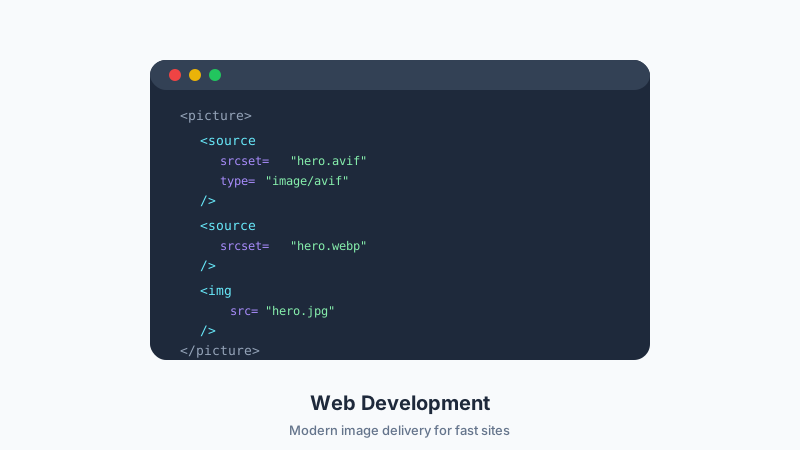
Image optimization is not a single task — it is a series of decisions that compound into significant performance gains. This checklist covers everything a web developer should consider when handling images in a project. Bookmark it and run through it before every deployment.
Format Selection
- Use WebP as the default format for photographic images. It delivers 25–35 percent smaller files than JPEG at equivalent quality.
- Use AVIF where supported for even greater savings (up to 50 percent smaller than JPEG). Provide WebP or JPEG fallbacks.
- Use SVG for icons, logos, and illustrations. Vector graphics scale perfectly and are typically smaller than raster equivalents.
- Use PNG only when transparency is required and WebP is not an option. PNG photographs are 5–10x larger than JPEG.
- Avoid GIF for animations. Use MP4 or WebM video instead. A 5-second GIF can be 10 MB; the same clip as MP4 is often under 500 KB.
-
Implement format fallbacks using the
<picture>element:
<picture>
  <source srcset="image.avif" type="image/avif">
  <source srcset="image.webp" type="image/webp">
  <img src="image.jpg" alt="Description">
</picture>
Sizing and Dimensions
- Never serve images larger than their display size. A 4000 px image displayed at 800 px wastes bandwidth.
- Generate multiple sizes for responsive delivery. Common breakpoints: 400, 800, 1200, and 1600 px wide.
- Use the srcset attribute to let the browser choose the right size:
<img src="photo-800.webp"
     srcset="photo-400.webp 400w, photo-800.webp 800w, photo-1200.webp 1200w, photo-1600.webp 1600w"
     sizes="(max-width: 600px) 100vw, (max-width: 1200px) 50vw, 800px"
alt="Description">- Account for device pixel ratio. Retina displays need 2x images. A 400 px display slot needs an 800 px image for sharp rendering.
-
Set explicit width and height on all
<img>tags to prevent Cumulative Layout Shift (CLS).
Compression
- Compress all images before deployment. Use the Browser Image Converter Image Compressor for quick, browser-based compression.
- Target quality 75–85 for photographs. This range is visually lossless for most content.
- Target quality 85–95 for images with text (screenshots, infographics). Text is more sensitive to compression artifacts.
- Use lossless compression for PNG when pixel accuracy matters (technical diagrams, screenshots for documentation).
- Strip unnecessary metadata. EXIF data adds 10–50 KB per image. Use the EXIF Remover to clean files before deployment.
- Audit total image weight per page. Aim for under 500 KB of images on content pages and under 1.5 MB on image-heavy pages.
Loading Strategy
-
Lazy load below-the-fold images using the native
loading="lazy"attribute. - Do not lazy load the LCP image. The Largest Contentful Paint element should load immediately.
- Preload critical images that appear above the fold:
<link rel="preload" as="image" href="hero.webp" type="image/webp">-
Use
fetchpriority="high"on the LCP image to signal its importance to the browser:
<img src="hero.webp" fetchpriority="high" alt="Hero image">- Implement blur-up or LQIP placeholders for images that load below the fold. A tiny, blurred placeholder prevents layout shift and gives users a preview.
-
Decode images off the main thread using
decoding="async"on non-critical images.
Accessibility
- Write descriptive alt text for every informational image. Be specific: "Red leather wallet on white background" not "product image."
-
Use empty alt attributes (
alt="") for purely decorative images so screen readers skip them. - Ensure sufficient contrast between text overlaid on images and the image background.
- Do not rely on images alone to convey critical information. Provide text alternatives.
Infrastructure
- Serve images from a CDN. Geographic proximity reduces latency.
- Enable HTTP/2 or HTTP/3 on your server. Multiplexed connections load multiple images faster.
-
Set long cache headers for images (e.g.,
Cache-Control: public, max-age=31536000, immutable). Use content hashes in filenames for cache busting. - Enable Brotli or gzip compression on your server for SVG files (they are text-based and compress well).
- Consider an image CDN (Cloudinary, imgix, Cloudflare Images) for automatic format conversion, resizing, and optimization on the fly.
Testing and Monitoring
- Run Lighthouse and check the image-related audits: "Properly size images," "Serve images in next-gen formats," "Efficiently encode images."
- Check Core Web Vitals in Google Search Console. Monitor LCP and CLS scores.
- Test on real devices and slow connections. Use Chrome DevTools network throttling to simulate 3G.
- Monitor total page weight over time. Image bloat tends to creep in as content is added.
- Automate image optimization in your build pipeline. Tools like sharp (Node.js), Squoosh CLI, or imagemin can process images during CI/CD.
Quick Reference: Recommended Settings
| Image Type | Format | Quality | Max Width |
|---|---|---|---|
| Hero/banner | WebP | 80 | 1920 px |
| Content image | WebP | 80 | 1200 px |
| Thumbnail | WebP | 75 | 400 px |
| Icon | SVG | N/A | N/A |
| Screenshot | PNG | Lossless | 1440 px |
| Product photo | WebP | 85 | 2000 px |
Conclusion
Image optimization is a discipline, not a one-time task. Run through this checklist at the start of every project and revisit it as content grows. Use Browser Image Converter's tools — Image Compressor, Image Resizer, Format Converter, and EXIF Remover — to handle the manual steps quickly and privately in your browser. Your users, your search rankings, and your hosting bill will all benefit.
相关文章
尝试该工具
现在需要这个工作流程吗?打开我们免费的浏览器内图像工具并在本地处理文件。
Open BrowserIMG Tools