
Photo Collage Ideas for Instagram: Layouts That Get Engagement
Discover creative photo collage layouts for Instagram posts and stories. Step-by-step guide to making eye-catching collages with free tools.
Discover creative photo collage layouts for Instagram posts and stories. Step-by-step guide to making eye-catching collages with free tools.
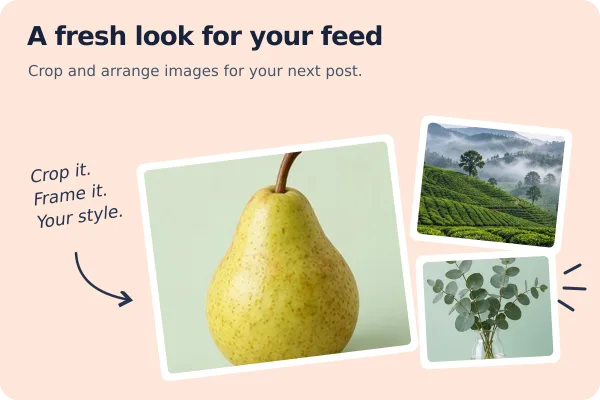
A single photo tells one story. A collage tells several at once. Instagram collages let you showcase multiple moments, compare before-and-after results, or create visual narratives that stand out in a crowded feed. Here are the layouts that work best and how to create them.
Why Collages Work on Instagram
Instagram's algorithm favors content that keeps people looking longer. Collages naturally increase dwell time because viewers scan multiple images within a single post. They also:
- Tell a richer story than a single image.
- Show transformation (before/after, progress over time).
- Display variety (multiple products, angles, or options).
- Break visual monotony in your feed grid.
Popular Collage Layouts
The Classic Grid (2×2 or 3×3)
Four or nine equal-sized photos arranged in a grid. This is the most versatile layout and works for almost any content type.
Best for: Product showcases, team introductions, recipe steps, travel highlights.
Dimensions: 1080 × 1080 px (square) with each cell being 540 × 540 px (2×2) or 360 × 360 px (3×3).
The Before and After (Side by Side)
Two images placed next to each other horizontally. The left shows "before" and the right shows "after."
Best for: Fitness progress, home renovations, photo editing results, makeovers.
Dimensions: 1080 × 1080 px with each half being 540 × 1080 px, or 1080 × 566 px landscape with each half being 540 × 566 px.
The Vertical Stack
Two or three images stacked vertically. This takes advantage of Instagram's 4:5 portrait ratio for maximum feed presence.
Best for: Step-by-step tutorials, outfit combinations, sequential moments.
Dimensions: 1080 × 1350 px (4:5) with each section being 1080 × 675 px (two images) or 1080 × 450 px (three images).
The Feature Layout
One large image with two or three smaller images alongside it. The large image is the hero; the smaller ones provide context or detail.
Best for: Product launches (hero shot plus detail shots), event coverage (main moment plus candids).
The Diagonal Split
The frame divided diagonally with different images on each side. This creates a dynamic, modern look.
Best for: Contrasting themes (day vs. night, work vs. play), creative portfolios.
The Polaroid Grid
Images styled to look like Polaroid prints scattered on a surface. Each photo has a white border and slight rotation.
Best for: Nostalgic content, personal memories, casual brand storytelling.
How to Create Instagram Collages
Using Browser Image Converter
- Open the Collage Maker on Browser Image Converter.
- Select your layout (grid, side-by-side, stacked, or custom).
- Upload your photos. Drag them into the positions you want.
- Adjust spacing, borders, and background color.
- Set the output dimensions to 1080 × 1080 px (square) or 1080 × 1350 px (portrait).
- Download your collage.
No watermarks, no sign-ups, and everything processes in your browser.
Preparing Photos Before Collaging
For the best results, prepare your individual photos first:
- Match the color tone. If one photo is warm and another is cool, the collage will look disjointed. Edit them to have a consistent look.
- Resize to consistent dimensions. Use the Image Resizer to make all photos the same size before adding them to the collage.
- Crop to the same aspect ratio. The Image Cropper helps you trim each photo to a matching ratio so they fit the grid cleanly.
Collage Tips for Higher Engagement
Maintain Visual Consistency
Use the same filter, color palette, or editing style across all images in the collage. This creates a cohesive look that feels intentional rather than thrown together.
Leave Breathing Room
Add 4–8 px of spacing between images. Cramming photos edge-to-edge looks cluttered. A thin white or colored border between cells gives each image room to breathe.
Use Odd Numbers
Collages with three or five images often look more dynamic than those with two or four. Odd numbers create natural focal points and asymmetry that draws the eye.
Add Text Sparingly
A short label or date on one panel can add context, but avoid covering your photos with text. Let the images do the talking.
Optimize for Mobile
Instagram is a mobile-first platform. View your collage on your phone before posting. Details that look fine on a desktop monitor may be too small to read on a phone screen.
Collage Ideas by Niche
- Food bloggers: Recipe steps in a grid, ingredient flat-lay next to the finished dish.
- Fitness: Monthly progress photos side by side, workout routine in a vertical stack.
- Travel: Destination highlights in a 3×3 grid, landmark plus local food plus street scene.
- Fashion: Outfit of the day from multiple angles, seasonal wardrobe picks.
- Photography: Behind-the-scenes next to the final shot, editing before and after.
- Small business: Product lineup, customer testimonials with product photos, packaging process.
Conclusion
Photo collages are one of the most effective content formats on Instagram. They increase dwell time, tell richer stories, and stand out in the feed. Use Browser Image Converter's Collage Maker to build polished collages in minutes, and pair it with the Image Resizer and Image Cropper to ensure every photo fits perfectly. Experiment with different layouts and find what resonates with your audience.
Last updated: July 2026
This guide is reviewed by the BIC Editorial Team to keep the recommendations accurate, private, and practical for browser-based image workflows.
About the Author
Abhay Tabbay is a web developer and image optimization specialist focused on privacy-first browser tools that help people convert, resize, and optimize images without uploading files to the cloud.
Related Articles
Try the Tool
Need this workflow right now? Open our free in-browser image tools and process files locally.
Open Browser Image Converter Tools