
How to Fit a Full Photo on Social Media Without Cropping
Learn how to fit entire horizontal or vertical photos into Instagram, Bumble, TikTok, and Tinder without cropping heads, feet, or travel scenery using smart blur padding.
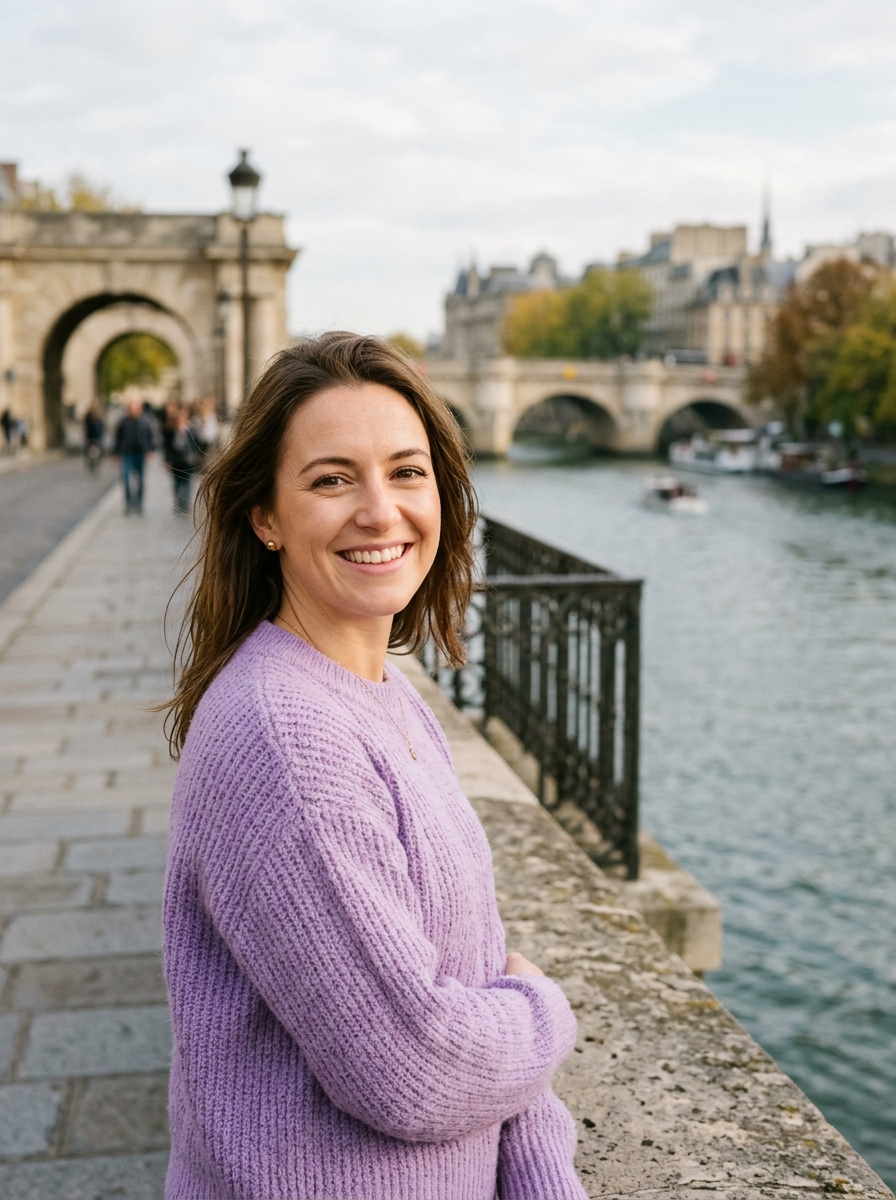
How to Fit a Full Photo on Social Media Without Cropping
Direct Answer: You can fit your entire photo into any social media aspect ratio without cutting off heads, bodies, or travel landscapes by using Browser Image Converter's Social & Profile Studio. The studio uses smart blur padding or clean solid backgrounds to expand the canvas while keeping 100% of your original photo completely intact.
Why Social Media Apps Cut Off Your Photos
Social networks and dating apps enforce rigid aspect ratios:
- Instagram Feed Posts: 1:1 square or 4:5 vertical portrait.
- Instagram Stories & TikTok: 9:16 vertical full-screen.
- Bumble & Tinder Swipe Cards: ~3:4 and 4:5 vertical cards with rounded corners and bottom overlay badges.
When you upload a wide landscape shot (e.g. 16:9) to a 1:1 or 4:5 app, the app forces you to crop either the left and right scenery or zooms in tightly on the center. In dating profiles, this often cuts off hair, foreheads, shoulders, or travel companions.
The Solution: Smart Blur Padding
Instead of losing important parts of your capture, smart blur padding:
- Automatically samples your photo's colors and textures.
- Scales a soft, blurred version of your image to fill the background.
- Centers your unaltered original photo in the middle with balanced margins (typically 15% to 25%).
- Gives your profile a professional, aesthetic look that looks intentional and clean.
Step-by-Step Instructions
- Go to Social & Profile Studio.
- Click Choose photos or select Try a sample.
- Pick your destination platform (e.g., Bumble, Instagram, or Tinder).
- Ensure the Fit mode toggle is active (active by default).
- Choose Blur under Background, or pick a matching solid pastel color swatch.
- Use the Padding slider (20%–25% recommended) to leave enough breathing room for app UI badges.
- Click Download photo to save your ready-to-post high-resolution JPG.
About the Author
Abhay Tabbay is a web developer and image optimization specialist focused on privacy-first browser tools that help people convert, resize, and optimize images without uploading files to the cloud.
Related Articles
Try the Tool
Need this workflow right now? Open our free in-browser image tools and process files locally.
Open Browser Image Converter Tools