
Shopify Image Too Large: How to Fix Megapixel and Byte Upload Errors
How to resolve 'Image exceeds 20 megapixels' and 'File size too large' upload rejections when adding product media to your Shopify online store.
Shopify Image Too Large: How to Fix Megapixel and Byte Upload Errors
Direct Answer: Shopify rejects product images if they exceed 20 Megapixels (20 million pixels) or 20 Megabytes (20 MB). The error "Image exceeds 20 megapixels" commonly occurs when uploading raw smartphone photos (e.g. iPhone 48 MP ProRAW captures or high-resolution mirrorless DSLR files). Even if the file was compressed to 1.5 MB, Shopify will refuse the upload if the dimensions exceed $Width \times Height > 20,000,000$.
The Official Shopify Recommended Image Settings
According to official Shopify documentation:
- Optimal Dimensions: 2048 × 2048 pixels (1:1 square). This provides sharp high-DPI clarity for customer zoom-in inspection while loading rapidly on mobile.
- Maximum Resolution: 4472 × 4472 pixels (or any dimension multiplying to $\le 20\text{ MP}$).
- Recommended Formats: WebP or JPG.
How to Fix Shopify Image Errors
- Open our Upload Requirements Checker and select the Shopify Product Image (Recommended) preset.
- Drop in your oversized product photos.
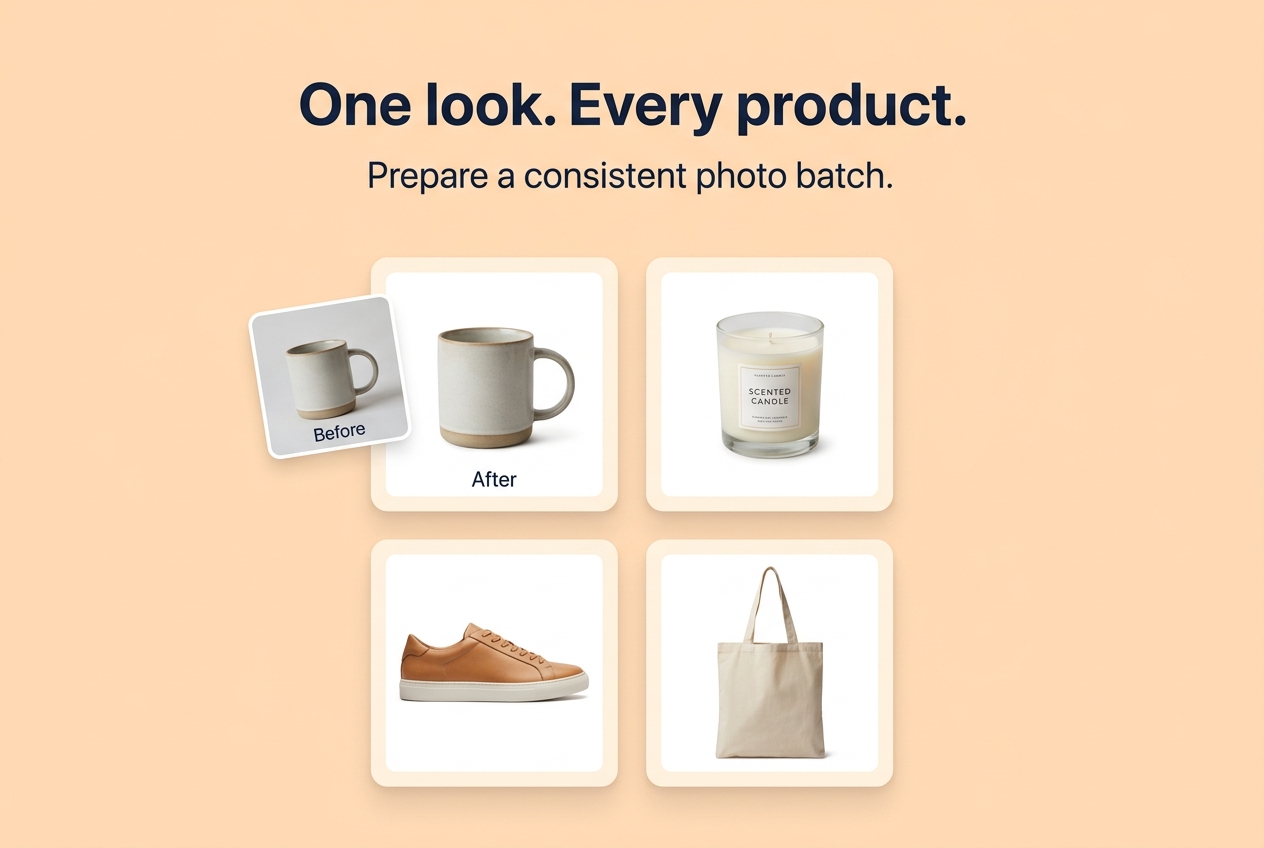
- The tool downscales the dimensions to 2048 × 2048 px and optimizes the byte size under 2 MB.
- Download and upload directly to your Shopify admin without any rejection errors.
About the Author
Abhay Tabbay is a web developer and image optimization specialist focused on privacy-first browser tools that help people convert, resize, and optimize images without uploading files to the cloud.
Related Articles
Try the Tool
Need this workflow right now? Open our free in-browser image tools and process files locally.
Open Browser Image Converter Tools