
How to Check a Photo Against Custom Upload Requirements Before Submitting
How to inspect and validate image format, byte size, and exact dimensions against strict form specifications before uploading to avoid rejection errors.
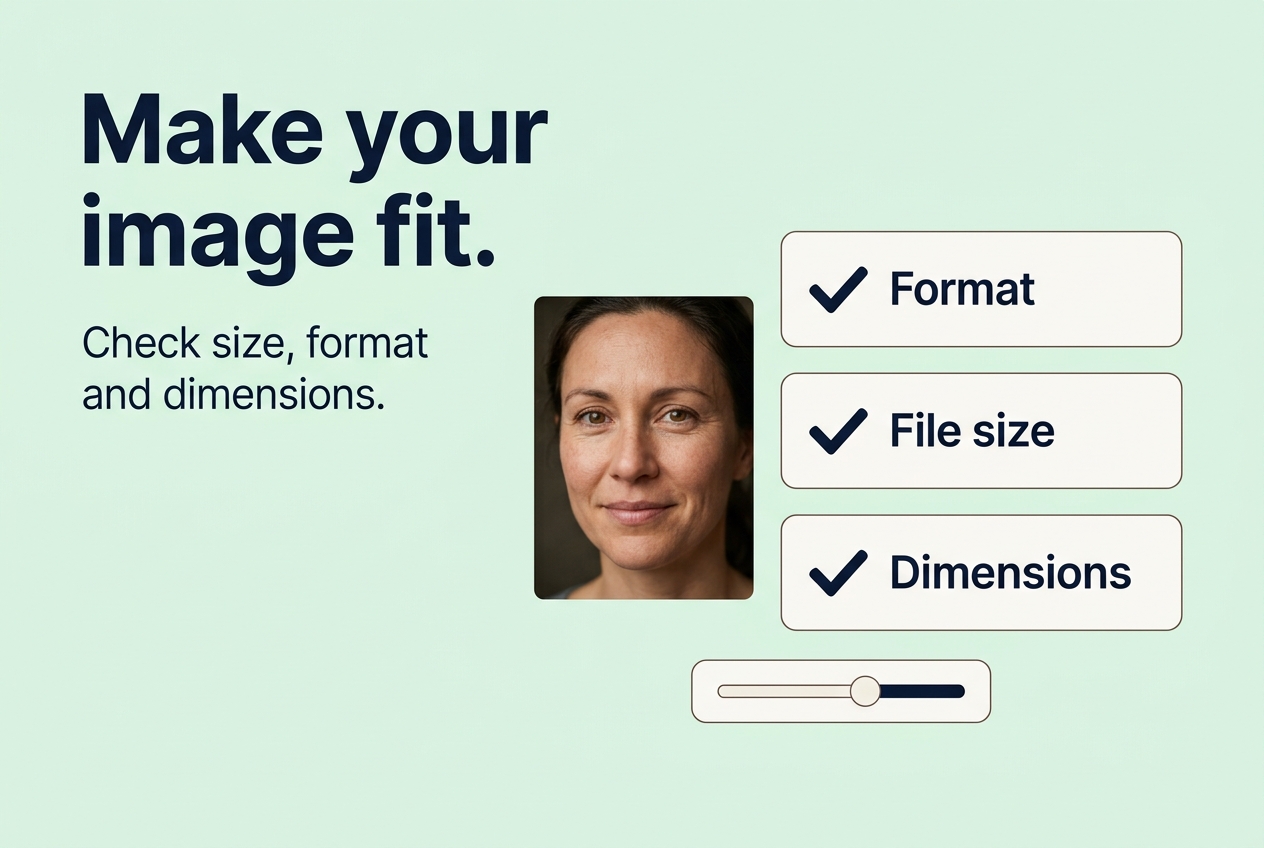
How to Check a Photo Against Custom Upload Requirements Before Submitting
Direct Answer: To prevent frustrating form submission errors, timeout rejections, or corrupted portal uploads, run your image through a client-side preflight check using the Upload Requirements Checker. It decodes the file header in your browser, measures the real uncompressed dimensions, checks the exact byte count, and flags mismatches before you upload.
The Preflight Checklist for Important Submissions
Before uploading documents to immigration portals, competitive exam servers, or client CMS platforms, verify these four parameters:
- Format Validation: Does the portal require
.jpgor does it accept.webp? Note that simply changing the extension from.pngto.jpgin file explorer does NOT change the internal image data structure.
- Byte Range: Verify both maximum and minimum byte limits (e.g., SSC candidate signature requires 10 KB to 20 KB).
- Aspect Ratio & Bounds: Ensure the portrait or signature is not stretched or distorted.
- Data Privacy: Sensitive government IDs, signatures, and personal photos should never be sent to third-party conversion servers. Ensure all processing is executed 100% locally in your web browser.
30-Second Preflight Guide
- Drag and drop your image file.
- Review the green PASS / red FAIL indicators for Format, File Size, and Dimensions.
- Click Prepare & optimize to fix any red flags instantly.
- Download your compliant, verified file.
About the Author
Abhay Tabbay is a web developer and image optimization specialist focused on privacy-first browser tools that help people convert, resize, and optimize images without uploading files to the cloud.
Related Articles
Try the Tool
Need this workflow right now? Open our free in-browser image tools and process files locally.
Open Browser Image Converter Tools